Indicators in Live and Blind
A variety of color, text, and layout conventions are used in Live and Blind to indicate various conditions.
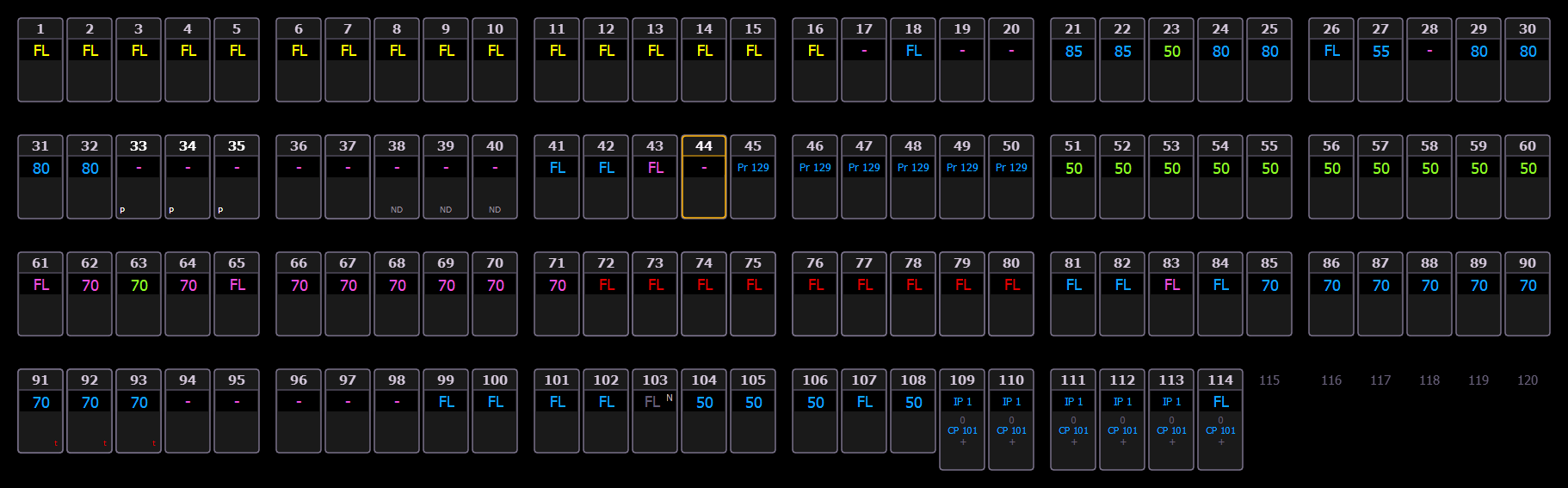
When Using [Format], color and text conventions apply regardless of the format of Live or Blind being used.
When manual channels are used, there will be a red Manual Channels advisory in the upper left hand corner of any Live display.
Color Indicators
Color indicates information about channel and parameter levels.
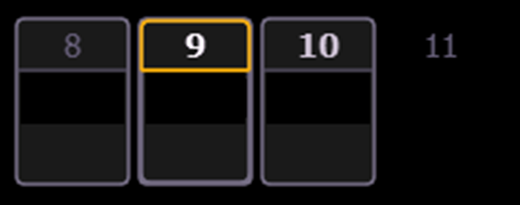
Channels
| Gray Number | Unpatched channel number. |
| White Number | Channel number. |
| Bright White Number | Channel is parked. |
| Gold Number | Channel is captured. |
| Gold Outline | Channel is currently selected. |
| No Outline | Channel has been deleted. |
Parameters
| Bright Red | Manual data (any data that has been set but not yet stored to an active cue or submaster) on all consoles using the same user ID. |
| Dark Red | Manual data from consoles using different user IDs. |
| Blue | Intensity value is higher than in the previous cue. Non-intensity parameters (NPs) are in blue when any move instruction has occurred. Unmarked. |
| Green | Intensity value is lower than in the previous cue. Also used in reference marking to indicate a channel is marked. |
| Magenta | Value is unchanged from the previous cue (tracked). |
| White | ABlock is applied to the value. |
| Underscored White | AnAuto-Block is applied to the value. |
| Gray | Unowned data. This could be a default value, data not currently being controlled, or a null value (from either {Make Null} or a filter). |
| Yellow | Data set from Submasters. |
| Orange | Data set from Staging Mode. |
| Pink | Override data from Augment3d Zones. |
When data is in transition (moving), it will appear in a lighter version of its color. This includes up- and down-fades for intensity, non-intensity moves from cues, submasters, and timed manual changes.
Text Indicators
Text indicators are used to show additional channel data.
Color indicators also apply to text indicators. For example, a red M indicates a manual mark, which changes to a blue M once the mark has been stored.
| _ | Underlined value (white) indicates a system-applied block (also called an auto-block). |
| + | Found in place of parameter data in summary view. Indicates that not all parameters in that category are at the same value. This indicator is found only in the summary view or in table views when the parameters are collapsed into a category view. If a majority of the values are the same, that value will be displayed along with the indicator. If there is no majority, just the indicator will be displayed. |
| ! | Indicates an ACN, RDM, or dimmer Errors and Warnings. |
| ? | Indicates an ACN, RDM, or dimmer Errors and Warnings. |
| A | Indicates the channel or parameter is asserted. Not available on Element Classic. |
| B | Indicates the channel or parameter is manually blocked. This block must be stored. |
| C | Captured channel if in yellow. Color Path if in any other color. Not available on Element Classic. |
| I | Channel is controlled by an inhibitive submaster. When displayed in the Block flag, "I" indicates a cue level intensity block. |
| IP, CP, FP, BP | Indicates that the value is referenced to a palette (Intensity, Color, Focus, or Beam). This text is followed by a number, indicating which palette is being referenced. This can be substituted with the palette label if the {Show Ref Labels} setting is activated . Holding down [About] & [Label] will toggle between the palette label and palette number. |
| M | Indicates a mark is placed, but manual, and must be stored. Is blue when stored."m" indicates cue is not marking. Not available on Element Classic. |
| MK | Indicates the channel is marked for a later cue. The cue number is indicated in the other categories (see "Q" below). Not available on Element Classic. |
| ND | Indicates that a channel has been patched as a non-dim fixture type. |
| N | Indicates the value is null (from either {Make Null} or a filter). |
| P | Indicates the channel is parked. |
| Ph | Indicates the channel is at a preheat level. |
| Pr | Indicates that the value is referenced to a preset. This text is followed by a number, indicating which preset is being referenced. The preset label may also be shown if this setting is enabled (see {Show Ref Labels}). Holding down [About] & [Label] will toggle between the preset label and preset number. |
| Q | Found in the non-intensity categories of a marked channel. The "Q" is followed by a number indicating which cue the mark is in preparation for. |
| t | The channel has discrete (parameter/category-specific) timing. |
| T | The channel has a By Type palette or preset applied. |
| ◆ | The channel has a Track SEM Focus Palette applied. |
| S | Indicates that a channel is stored to a shielded submaster. |
| R | Indicates a manual reference override. Manual changes have been made that override a previously stored reference (such as to a palette or preset). Once recorded, the reference will be broken. If updated, the referenced target will be updated as well, unless otherwise instructed. |
Channel Appearance
The appearance of channel tombstones in Live and Blind is partially dependent on the fixture type patched to that channel.
Conventionals
Conventionals are intensity-only fixtures.
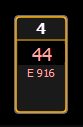
Conventionals display the channel number, intensity, and any additional data below.
Multi-Parameter Devices
Multi-parameter devices can be LED or automated fixtures, as well as any controllable device like a hazer.
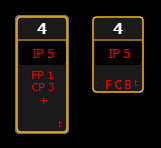
This view also has additional data fields beneath intensity for Focus, Color, and Beam information.
This information can be truncated by pressing [Params] and any of those parameter categories in the CIA, which will leave only the intensity field and FCB indicators at the bottom of the channel. On Element 2, Ion Classic, and Element Classic, you will need to use [Data].
Multicell Devices
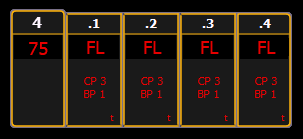
Multicell devices display the channel number broken into decimals, based on how many cells the device has. Multicell fixtures can be controlled as an entire fixture, individual cells, or a combination of cells. Parameter data can also be suppressed in the same way as automated fixtures.
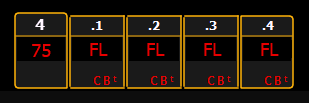
You can hide cells or top-level channels Using Flexichannel's Cells Off mode. The top-level channel number will appear with a decimal, display its own information in the normal font size, and use the following data indicators for cells:
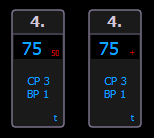
- Value - all of the cells are at the same value.
- Value and Plus (+) - the majority of the cells are at the same value.
- Plus (+) - no majority of cells share a value.